
Bring a smooth experience to the development of Chrome Extension.
Before starting
Several years ago, I developed a chrome extension with ClojureScript, which was named GitHub Colorful Contributions .
That was the first time I have used lein-figwheel , a tool that can give you an extremely smooth live hot reloading in development.
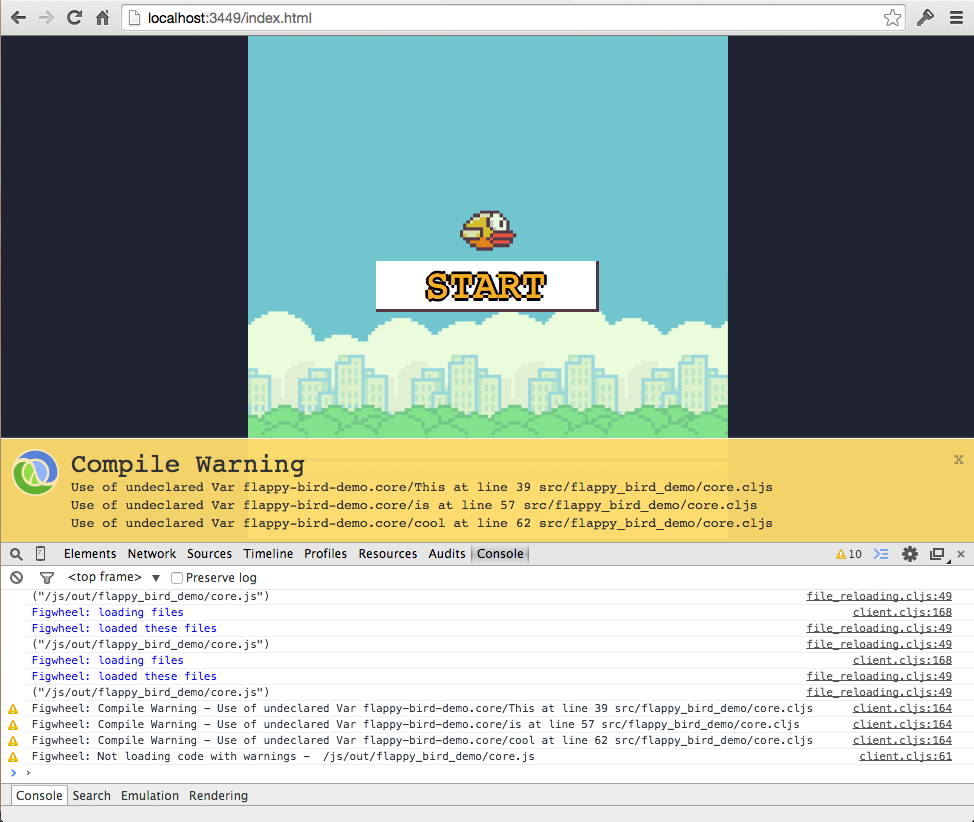
I am deeply attracted by it. It also has great info feedback (Tips for successful reload) and a built-in ClojureScript REPL (Use repl to send the code to the browser). If you come from other languages (Not Clojure and ClojureScript), I believe you will like everything that lein-figwheel brings you very much.
Below is the screenshot from lein-figwheel README, It can reflect the great info feedback just mentioned:
Back to the topic, in this post, we are going to use Figwheel Main , a brand new upgraded version of lein-figwheel, to build a chrome extension. I have used it in GitHub Colorful Contributions to replace lein-figwheel. There will be some differences from regular web development that require our special attention. But don’t worry, I will point out them later.
Let’s start.
Setup
Assuming you have lein
installed, then open https://rigsomelight.com/figwheel-main-template/
and copy the new command to your shell:
lein new figwheel-main hello-world.core -- --reagent
Note: for a simple setup, we won’t use
+npm-bundlein the options but use cljsjs packages.
This command will create a dir named hello-world.core and add a minimal Reagent
application into it.
Then we can run:
lein fig:build
to bootstrap the dev environment. After build, a new tab will be opened automatically and the repl will also be launched.
We can test it by running below in repl:
(js/alert "Am I connected?")
If you see an alert opened, then our preparations are complete.
Extension manifest
To develop a chrome extension, we need to create a manifest.json in the resources/public dir:
touch resources/public/manifest.json
You can view Manifest file format for more details. This time we will fill in the content below:
{
  "name": "Hello World",
  "version": "0.1.0",
  "manifest_version": 2,
  "browser_action": {
    "default_popup": "index.html"
  }
}
Then we can go to the next step.
Load unpacked
Now we can put it into extensions, open chrome://extensions, and click Load unpacked to select resources/public folder:

Everything looks normal, but when you click the extension icon in the extensions bar, some errors will occur:

This is the first point we need to pay attention to: Chrome Apps Content Security Policy .
Since we are in a development environment, Figwheel Main will insert some inline scripts (related to its functionality) into the document. You can view the dev-main.js:
if (typeof goog == 'undefined') document.write('<script src="/cljs-out/dev/goog/base.js"></script>')
document.write('<script src="/cljs-out/dev/goog/deps.js"></script>')
document.write('<script src="/cljs-out/dev/cljs_deps.js"></script>')
document.write(
  '<script>if (typeof goog == "undefined") console.warn("ClojureScript could not load :main, did you forget to specify :asset-path?");</script>'
)
document.write('<script>goog.require("figwheel.core");</script>')
document.write('<script>goog.require("figwheel.main");</script>')
document.write('<script>goog.require("figwheel.repl.preload");</script>')
document.write('<script>goog.require("devtools.preload");</script>')
document.write('<script>goog.require("figwheel.main.system_exit");</script>')
document.write('<script>goog.require("figwheel.main.css_reload");</script>')
document.write('<script>goog.require("process.env");</script>')
document.write('<script>goog.require("hello_world.core");</script>')
This violates this rule:
You can’t use inline scripting in your Chrome App pages. The restriction bans both <script> blocks and event handlers (<button onclick="…">).
Refer to the errors above, to solve this problem, we need to set the content_security_policy field in the manifest.json:
{
  "content_security_policy": "script-src 'self' 'unsafe-eval' 'sha256-xxx' 'sha256-xxx' 'sha256-xxx'; object-src 'self'"
}
The errors contain all sha256-xxx which need to be filled in the policy field. This is a little bit cumbersome. You may wonder why we can’t use the unsafe-inline?
Because chrome ignores this keyword especially, even the errors tell you can 😢.
After finishing this, edit the code and you will see that your code has completed the hot reload 😎.
Production
After you finish your application, you still need to do something before bundling it.
To develop the chrome extension, you need to use chrome API to do some things,
like save and sync the user storage, etc. We need to tell the closure compiler
chrome is the externs
we used.
There are two files we need to download:
- https://github.com/google/closure-compiler/blob/master/contrib/externs/chrome.js
- https://github.com/google/closure-compiler/blob/master/contrib/externs/chrome_extensions.js
Put them into externs folder and edit dev.cljs.edn like below content:
{:main hello-world.core
 :externs ["externs/chrome.js" "externs/chrome_extensions.js"]}
Then run:
lein fig:min
to build the production code.
Conclusion
These are all steps to build a chrome extension with Figwheel Main.
If you are looking for a real-world example as a reference, the GitHub Colorful Contributions is what you want.
Thanks for reading. Happy coding with Figwheel Main!
References: